Connect to your server
Once your server is running, joining it takes about ten seconds. Here is where to find your address and how to add it in Minecraft.
Find your server address
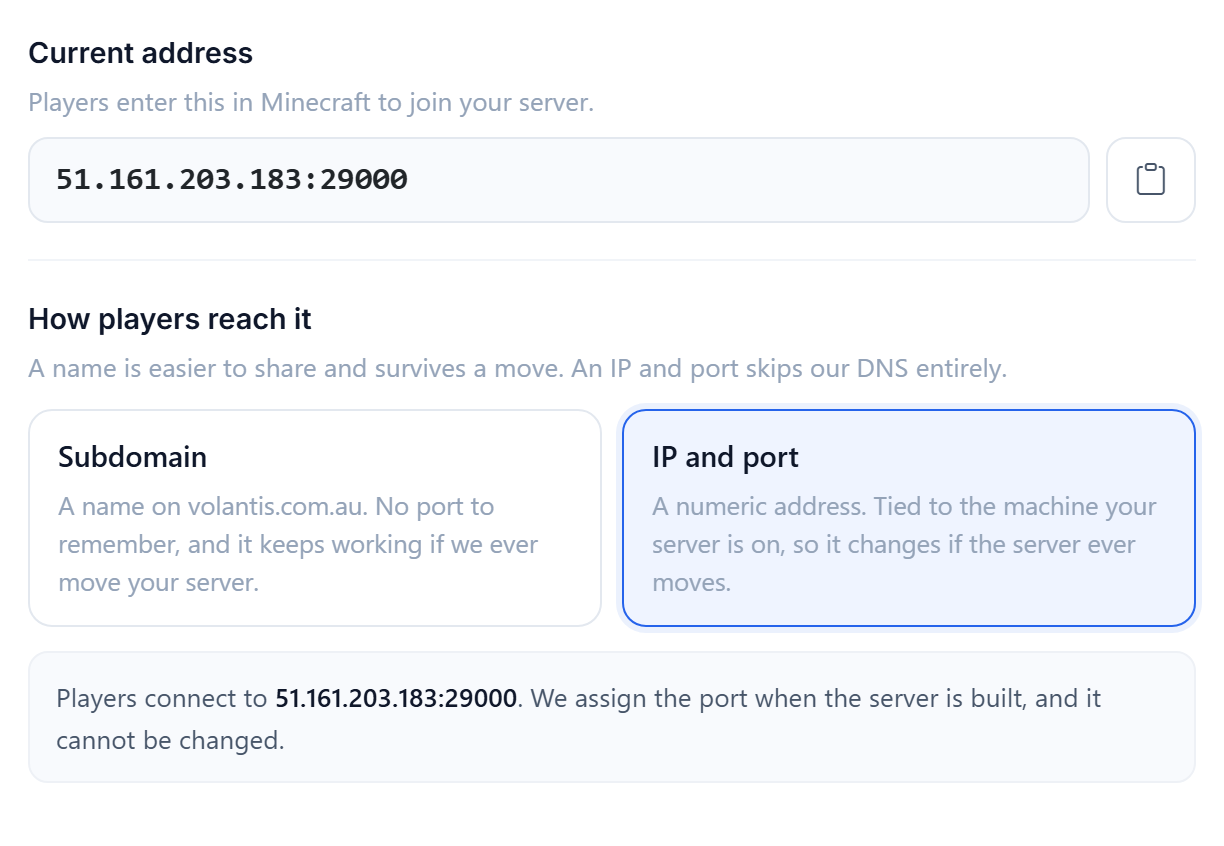
Open your server and look at the Overview page. Your public address sits right at the top under Connectivity. Click the copy icon next to it to grab it.

Your address looks something like yourname.volantis.com.au. That single address is all your friends need, there is no port to remember.
Add it in Minecraft: Java Edition
- Start Minecraft and click Multiplayer.
- Click Add Server.
- Put anything you like in Server Name, then paste your address into Server Address.
- Click Done, pick your server from the list, and hit Join Server.
Your server has to be running before anyone can join. If it is stopped, open it and press Start, then wait for the console to say Done.
Want a different address?
You can change your subdomain, or switch to a plain IP and port, from Settings under Connection.
Nobody can connect?
- Check the status shows Running, not Stopped or Starting.
- Look for a typo in the address, it is easy to miss a letter.
- Make sure everyone is on the same Minecraft version. Your server version is shown on the Overview page under Server Info.
Related: Start, stop and restart your server
Was this helpful?
Still need help? Contact support.
