Create your first server
Spinning up a Minecraft server on Volantis takes about a minute. Here is the whole thing from start to finish. Every server you make here is Minecraft: Java Edition.
Open the create wizard
From your dashboard, click Create Server in the top right.
The wizard walks you through six quick steps. The list down the left shows where you are, and you can click any step you have already finished to jump back to it.
Step 1: Name your server
Type a name you will recognise later, then click Next.
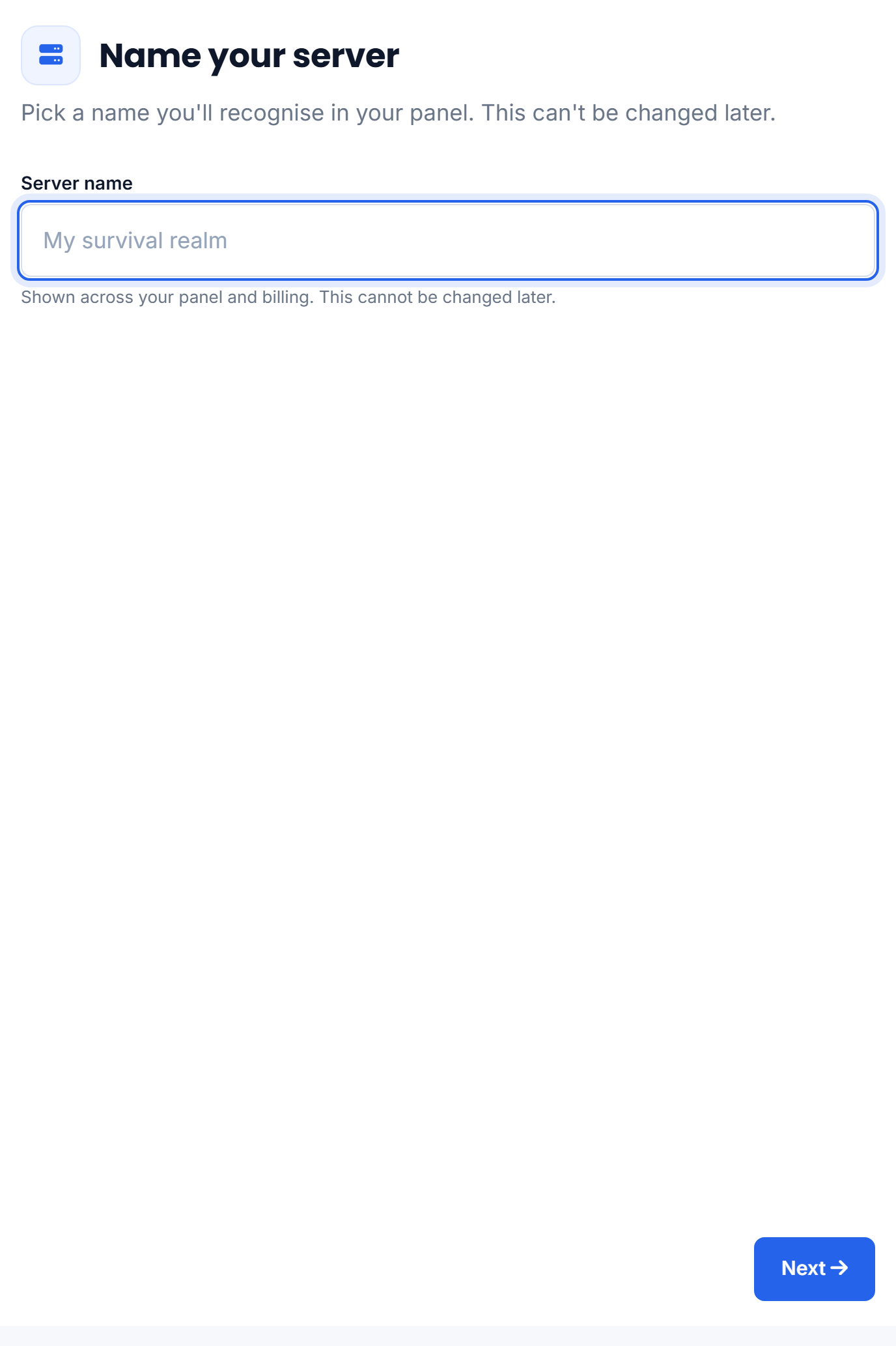
The name shows up all over your panel and cannot be changed afterwards, so pick something you are happy to keep.
Step 2: Choose your resources
Set how much power the server gets: memory (RAM), CPU cores and disk space.
A quick rule of thumb for RAM:
- Vanilla or a few plugins: 1.5 GB to 2 GB
- A medium modpack: 3 GB to 4 GB
- A big modpack (100+ mods): 6 GB or more
Do not overthink it. You can raise or lower any of these later from your plan, so start sensible and adjust once you see how it runs.
Step 3: Pick your software
This is what actually runs your world:
- Vanilla is the plain game with no add-ons.
- Paper is vanilla plus plugins, and it is the usual choice for a survival or SMP server because it runs smoother and supports plugins.
- Fabric, Forge, NeoForge and Quilt are mod loaders. Choose one of these if you want to run mods.
Then choose a Minecraft version. If you are not sure, Paper on the latest version is a safe default.
Step 4: Choose your world
Leave this on the default for a fresh, randomly generated world, or paste in a seed if you want a specific one. Already have a world you love? You can upload it after the server is made.
Step 5: Pick your address
This is the address your friends type in to join. Choose a subdomain and we check that it is free while you type. Your finished address looks like yourname.volantis.com.au.
Step 6: Review and create
Give the summary a last look, then click Create. We build the server and take you straight to its management page. The first build is usually done in under a minute, and from there you can start it up and jump in.
Where to go next
Was this helpful?
Still need help? Contact support.
