Upload and manage files
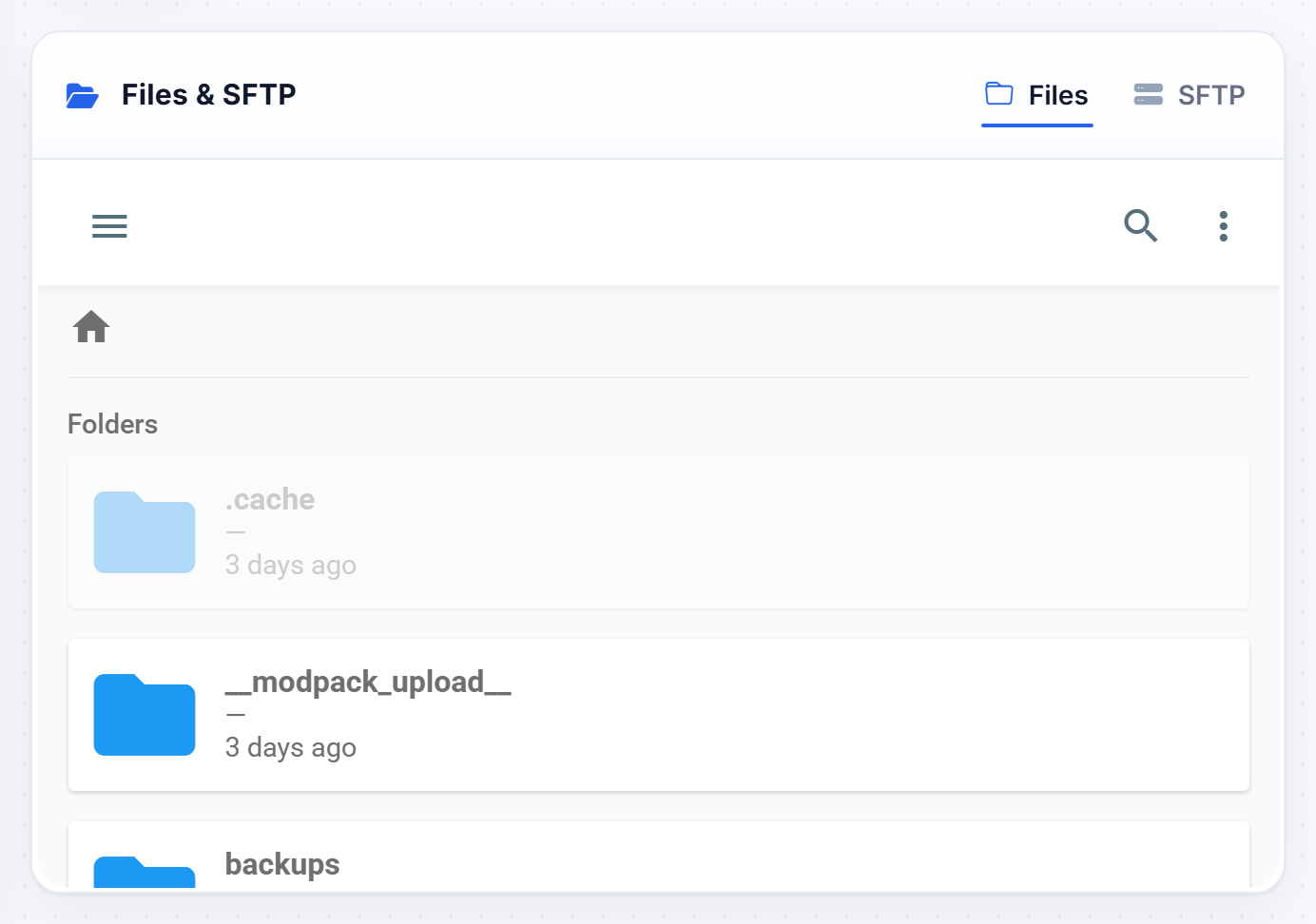
The Files tab is a full file manager for your server. You can browse, edit, upload and download anything, with no FTP software needed.
Mods and plugins have their own place
Do not drag jar files into the mods or plugins folder by hand. Use the Mods & Plugins tab instead - Upload Mod takes a jar by file picker or drag and drop, puts it where it belongs, and lists it alongside everything else you can then turn on and off individually.

See Install mods and plugins for finding them in the first place.
Getting around
Your server's folders are laid out just as they are on disk: mods, plugins, config, world, logs and the rest. Click a folder to open it, and use the breadcrumb at the top to step back up.
Uploading
Click the upload button, or drag files straight into the window, to add them to the folder you are in. This is how you drop in a config someone gave you, a resource pack, or a world.
Large uploads are fine - worlds and modpack archives up to about 2 GB go through the browser. Anything bigger is better sent over SFTP.
Editing and downloading
- Click a text file such as a
.properties,.ymlor.jsonto open it in the built-in editor, make your change, and save. - Use the download button on any file or folder to pull it to your computer.
Stop the server before editing world files or large configs, so nothing overwrites your changes when it shuts down.
SFTP
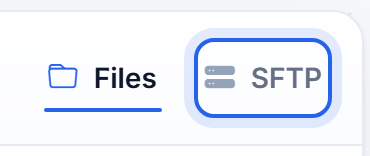
Prefer a desktop app? Every server also supports SFTP. Switch to the SFTP tab at the top of this page for the host, port and username.
See How to connect with SFTP for setting up FileZilla.
Was this helpful?
Still need help? Contact support.
